Partner Integrations
This guide covers the partner setup material from the client integration document for Meta/Facebook Ads and Google Ads. Use it alongside the SDK guides when app events must be mapped to ad partner integrations.
Meta and Facebook Ads
Access the Integration
- Log in to the DriveMetaData platform.
- Navigate to Partners > Integrated Partner.
- Select Facebook Ads.
Integration Fields
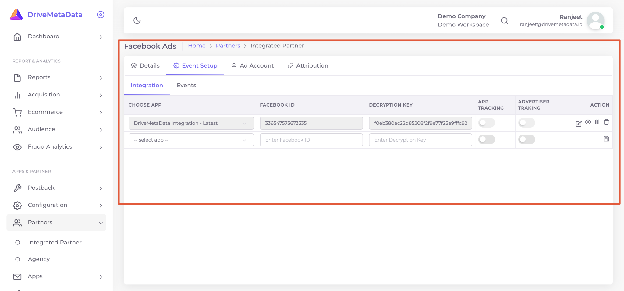
| Field | Description |
|---|---|
| Choose App | App selected for the integration. |
| Facebook ID | Facebook app or advertising account identifier. |
| Decryption Key | Key used to authenticate encrypted partner data exchange. |
| App Tracking | Enables app-related event tracking. |
| Advertiser Tracking | Enables advertiser-level tracking and analytics. |
| Action | View, edit, or delete integration settings. |
Setup Steps
- Select the app in Choose App.
- Enter the Facebook ID from Facebook Business Manager or the Meta app.
- Enter the decryption key from the approved Facebook settings.
- Enable App Tracking for in-app events.
- Enable Advertiser Tracking when advertiser-level analytics are required.
- Save the integration.
Event Setup
Open the Event Setup tab for Facebook Ads.
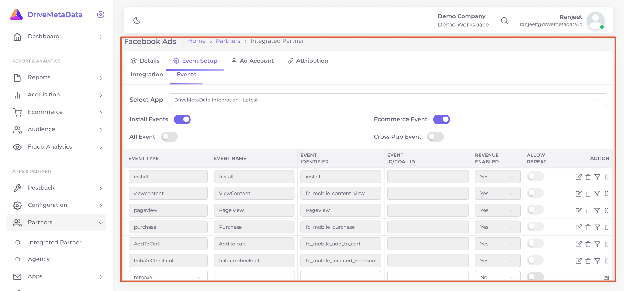
| Field | Description |
|---|---|
| Select App | App whose events are being configured. |
| Install Events | Enables install event tracking. |
| Ecommerce Event | Enables ecommerce event mapping. |
| All Event | Enables all supported event mappings. |
| Cross Pub Event | Enables cross-publisher event tracking. |
Event configuration fields:
| Column | Description |
|---|---|
| Event Type | Technical event name from DriveMetaData. |
| Event Name | Human-readable event name. |
| Event Identifier | Partner event identifier. |
| Event ID/Goal ID | Goal or ID associated with the event. |
| Revenue Enabled | Whether revenue is tracked for the event. |
| Allow Repeat | Whether repeated events are allowed. |
| Action | Edit, filter, or delete the mapping. |
Example mappings:
| Event Type | Event Name | Event Identifier | Revenue Enabled | Allow Repeat |
|---|---|---|---|---|
install | Install | install | Yes | No |
viewcontent | ViewContent | fb_mobile_content_view | Yes | No |
pageview | Page View | PageView | Yes | No |
purchase | Purchase | fb_mobile_purchase | Yes | No |
AddToCart | Add to Cart | fb_mobile_add_to_cart | Yes | No |
InitiateCheckout | Initiate Checkout | fb_mobile_initiated_checkout | Yes | No |
Meta Troubleshooting
| Issue | Check |
|---|---|
| Invalid Facebook ID | Confirm the ID matches the app or ad account in Facebook Business Manager. |
| Decryption key error | Verify the key matches the generated Facebook setting. |
| Tracking not working | Confirm tracking toggles are enabled and event mappings are saved. |
Google Ads
DriveMetaData can connect to Google Ads through a third-party app analytics link ID. The link ID enables conversion import, attribution, and remarketing audience workflows.
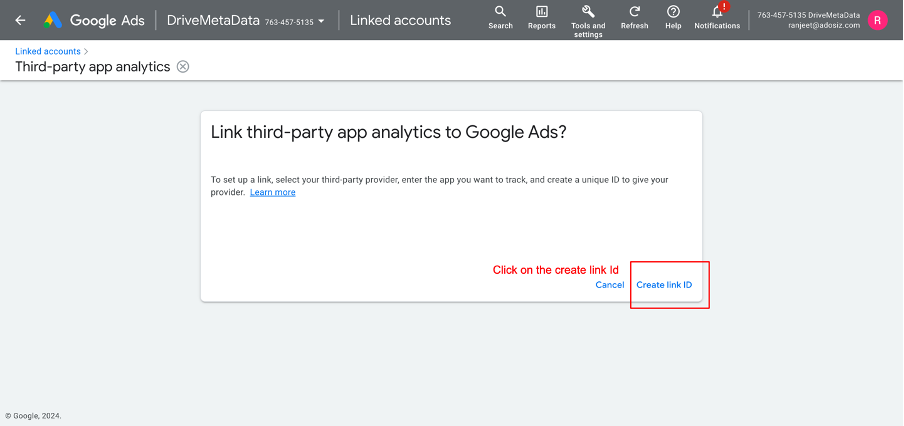
Create a Link ID
- Open Google Ads.
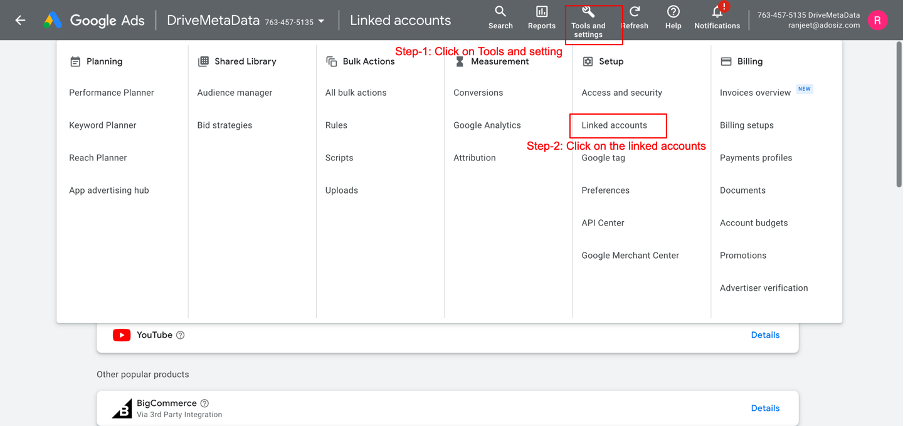
- Go to Tools and Settings.
- Open Linked accounts.
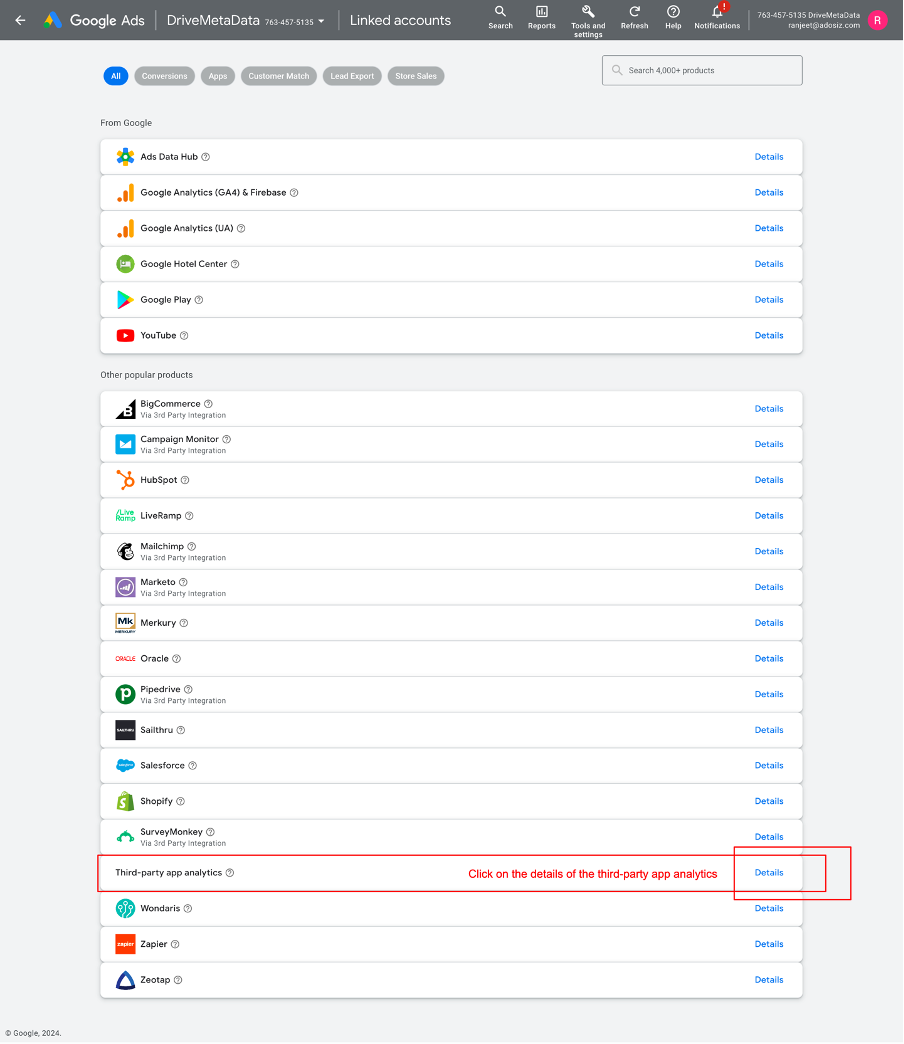
- Choose Third-party app analytics.
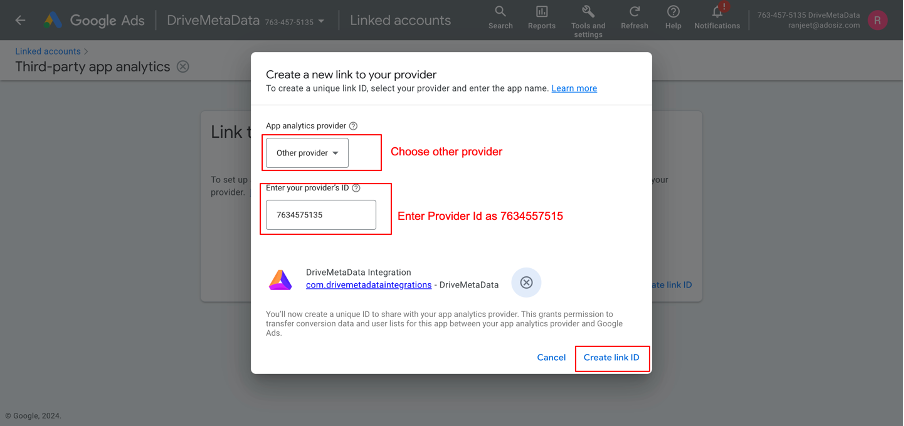
- Create a new link ID.
- Enter the provider and app details:
- App Analytics Provider: other provider.
- Provider ID: value supplied by DriveMetaData.
- Platform: Android or iOS.
- App name: select the app.
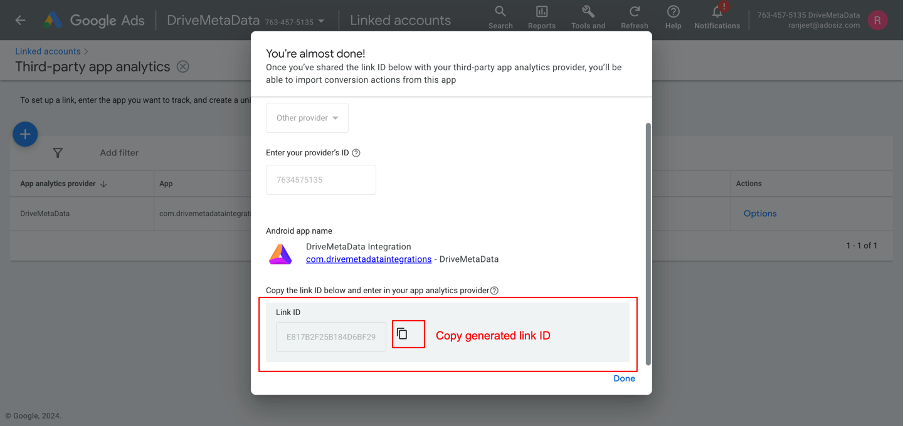
- Copy the generated link ID.
- Share the link ID with the DriveMetaData team through the approved support channel.
Access Google Ads Integration in DriveMetaData
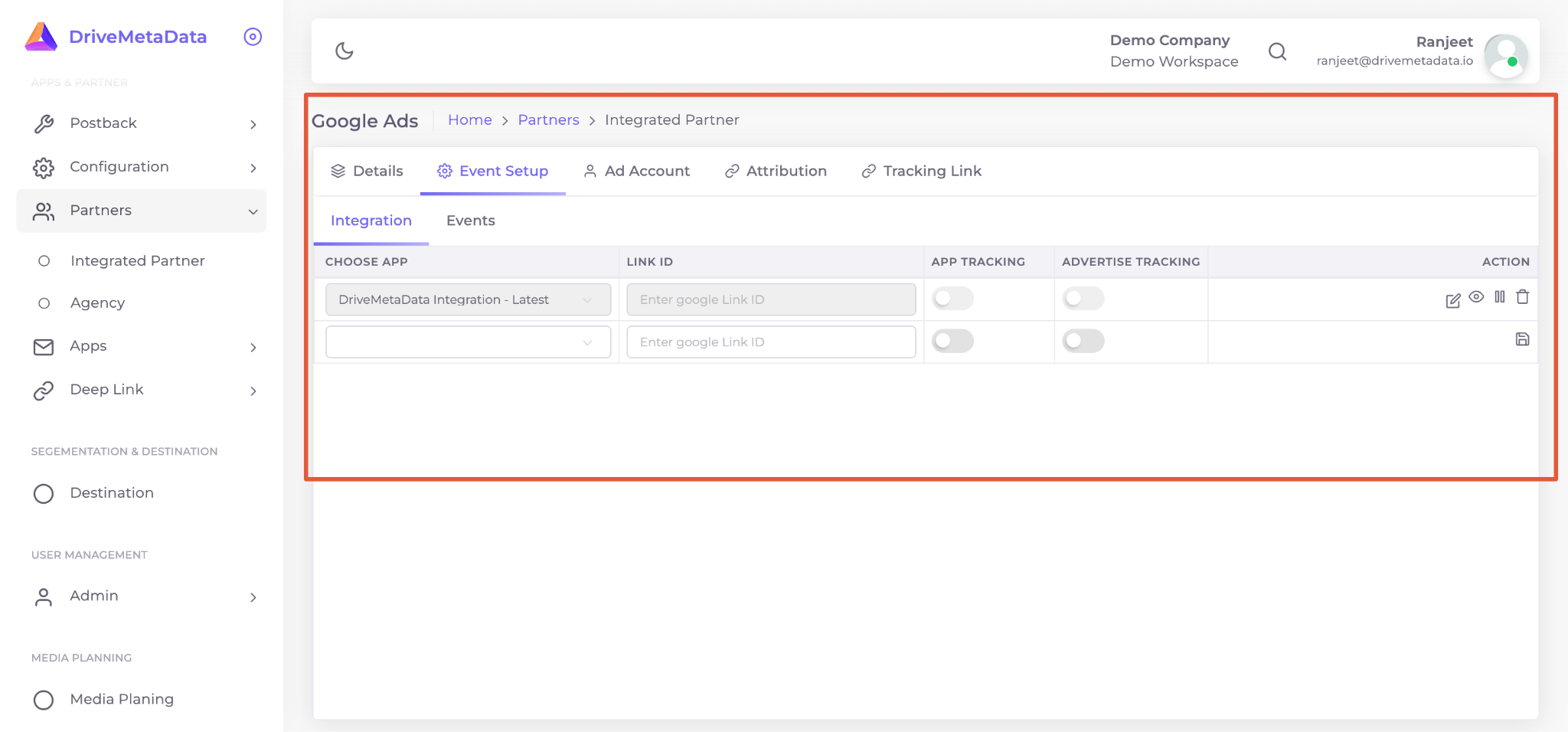
- Log in to the DriveMetaData platform.
- Navigate to Partners > Integrated Partner.
- Select Google Ads.
Best Practices
- Store decryption keys, provider IDs, and link IDs securely.
- Enable only the event mappings needed for the campaign or app workflow.
- Review revenue-enabled events before launch.
- Keep event names aligned with the SDK event dictionary.
- Recheck partner mappings after app releases or event schema changes.